メインコンテンツにスキップ

Corsair M55 RGB Pro Gaming Mouse Motherboard

必要な工具と部品

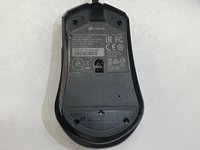
  1. Corsair M55 RGB Pro Gaming Mouse Motherboard, Motherboard: 手順 1、 3の画像 1 Corsair M55 RGB Pro Gaming Mouse Motherboard, Motherboard: 手順 1、 3の画像 2 Corsair M55 RGB Pro Gaming Mouse Motherboard, Motherboard: 手順 1、 3の画像 3
    • Use a spudger to gently peel off and remove the three mouse feet on the bottom of the mouse.

    • If you are not replacing the mouse feet with a new set, put them aside to replace them at the end of the repair.

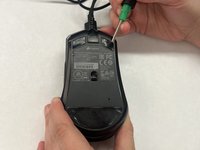
  2. Corsair M55 RGB Pro Gaming Mouse Motherboard: 手順 2、 3の画像 1 Corsair M55 RGB Pro Gaming Mouse Motherboard: 手順 2、 3の画像 2 Corsair M55 RGB Pro Gaming Mouse Motherboard: 手順 2、 3の画像 3
    • Use a Phillips #1 screwdriver to remove the four 10 mm screws from the bottom of the mouse.

    • There is a cable connecting the bottom and top of the mouse.

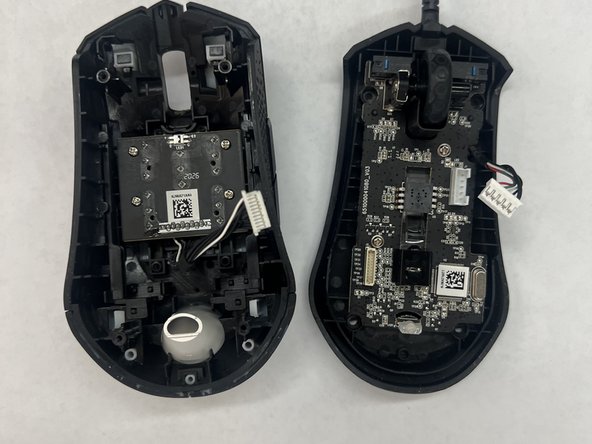
  3. Corsair M55 RGB Pro Gaming Mouse Motherboard: 手順 3、 2の画像 1 Corsair M55 RGB Pro Gaming Mouse Motherboard: 手順 3、 2の画像 2
    • Use a spudger to separate the top and bottom of the mouse.

    • Don't pull them apart as they are connected by a cable connector and could become damaged.

    • Pull the PCB cable away from the connector in the same direction as the individual wires are running.

    • Pull evenly on the full width of the cable so that no individual wires are overly strained.

  4. Corsair M55 RGB Pro Gaming Mouse Motherboard: 手順 4、 2の画像 1 Corsair M55 RGB Pro Gaming Mouse Motherboard: 手順 4、 2の画像 2
    • Pull the USB pin cable away from the connector in the same direction as the individual wires are running.

    • Pull evenly on the full width of the cable so that no individual wires are overly strained.

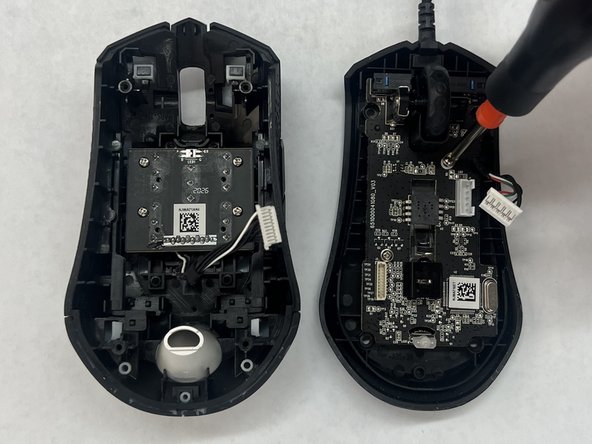
  5. Corsair M55 RGB Pro Gaming Mouse Motherboard: 手順 5、 3の画像 1 Corsair M55 RGB Pro Gaming Mouse Motherboard: 手順 5、 3の画像 2 Corsair M55 RGB Pro Gaming Mouse Motherboard: 手順 5、 3の画像 3
    • Use a Phillips #1 screwdriver to remove the two 5 mm screws that secure the motherboard.

  6. Corsair M55 RGB Pro Gaming Mouse Motherboard: 手順 6、 3の画像 1 Corsair M55 RGB Pro Gaming Mouse Motherboard: 手順 6、 3の画像 2 Corsair M55 RGB Pro Gaming Mouse Motherboard: 手順 6、 3の画像 3
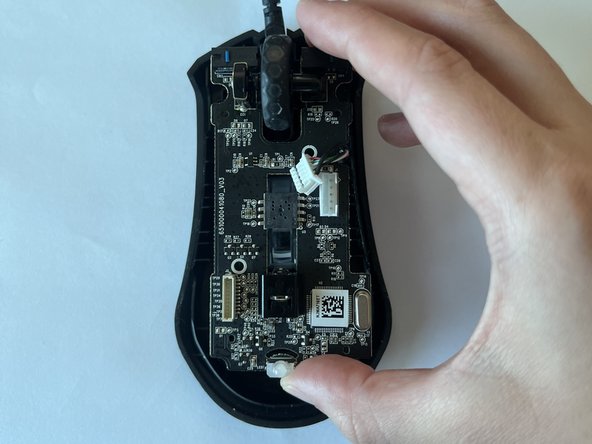
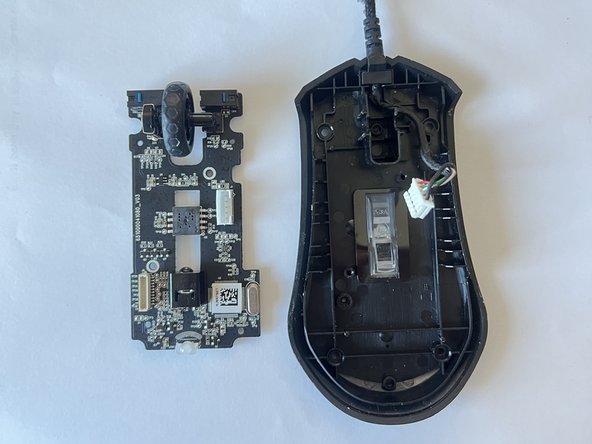
    • Carefully lift the motherboard out of the base of the mouse by the edges.

  7. Corsair M55 RGB Pro Gaming Mouse Motherboard: 手順 7、 3の画像 1 Corsair M55 RGB Pro Gaming Mouse Motherboard: 手順 7、 3の画像 2 Corsair M55 RGB Pro Gaming Mouse Motherboard: 手順 7、 3の画像 3
    • If necessary, remove the mouse wheel by sliding it to the right.

    • It should come out of the slot easily as it's not attached.

終わりに

To reassemble your device, follow these instructions in reverse order.

作成者

2人の作成者と共同で作成されました。

Rizza Barnwell

メンバー登録日: 03/05/24

145 ポイント

1ガイドが承認済み

チーム

CSU Los Angeles, Team 8-11, Grodsky Spring 2024 CSU Los Angeles, Team 8-11, Grodsky Spring 2024人のメンバー

CSULA-GRODSKY-S24S8G11

2 メンバー

1のガイドは作成済み

0件のガイドコメント

コメントを追加

統計データ:

過去 24時間: 3

過去 7 日: 18

過去 30 日: 53

今までの合計 897